Permanently saving filters
All the plants in the tenant with an Alarm↑ or active alarms occurring in the tenant can be filtered and displayed by various attributes to provide a better overview. You can save filters you created for future use:
Clicking or opens a new 'Saved filters' dialog box:
- : No saved filter is active.
- : A saved filter is already applied.
Proceed as follows to save a filter set up by a user and reuse it:
- Click
- A new dialog window 'Saved filters' opens:
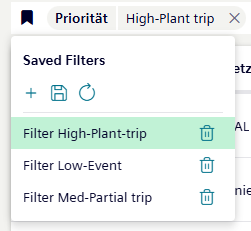
- Click '+'
- Applied filters are reset.
- You can set up a new filter.
- Click
- A new 'Save filter' dialog box opens.
- Enter 'Filter name' and 'Filter description (optional)':
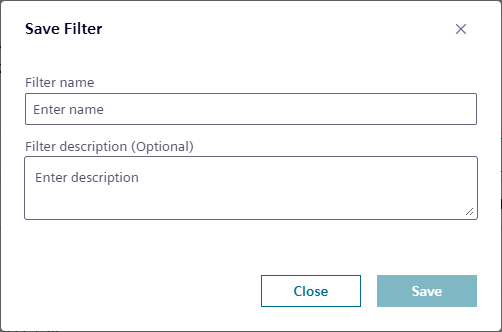
- Click 'Save'.
- The new filter is saved.
- Select a saved filter and click .
- A new 'Update filter' dialog box opens.
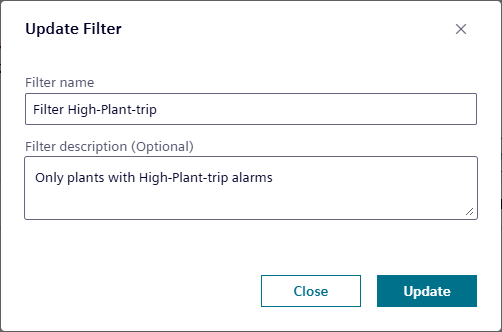
- Correct 'Filter name' and 'Filter description (optional)'.
- Click 'Update'.
- The saved filter is updated.
- Click .
- The currently applied filter is switched off.
- The icon changes to .
- Click .
- The filter is deleted from the list of saved filters.
Filters can be created and saved in the following functions. They only apply to this function:
- Plants
- Active alarms