API user throttling

Function available upon request. Contact Siemens Support.
A Tenant-Administrator can reduce the number of API↑ endpoint accesses by individual users to reduce data communication within the tenant. The Tenant-Administrator can set the following:
- Which user to throttle.
- The extent to which the user's speed is throttled.
- User access level.
- The user's access level is initially determined by the API user role but can be adapted accordingly.
- At which exact endpoints is access throttled.
- You can select 'GET' endpoints.
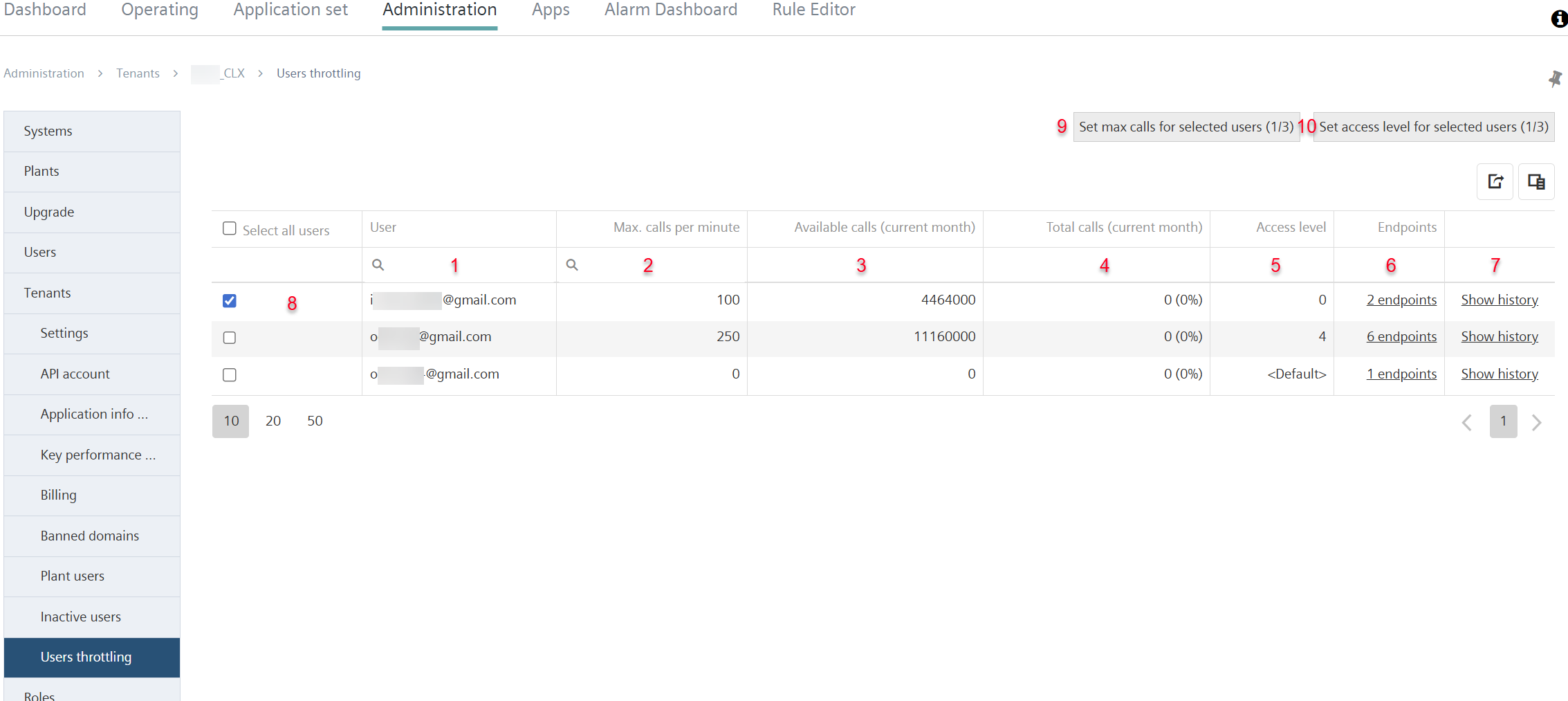
Proceed as follows:
- The own role is 'Administrator' in the Main-Tenant.
- The user to be reduced has the Main administrator role↑ 'TenantAPIUser' with access level '0' (see 'Assign administrator roles'). The role can only access API endpoints marked as 'ReadOnly'.
- Go to the menu 'Administration > Tenants > 'My Tenant' > User throttling'.
- All users with the 'TenantAPIUser' role are listed (1).
- The table displays the configured limits for queries per minute (2), available queries (3), total number of queries (4), access level (5) and the number of restricted endpoints (6).
- Select one or more users to throttle (8).
- For selected users, you can determine the number of API↑ queries per minute from endpoints and the access level.
Select the endpoints to throttle
It is possible to throttle the number of requests a user can make, either for all API endpoints or only for a specific selection of API endpoints. Proceed as follows:
- Click an entry under 'Endpoints' (6).
- A new pop-up window opens:
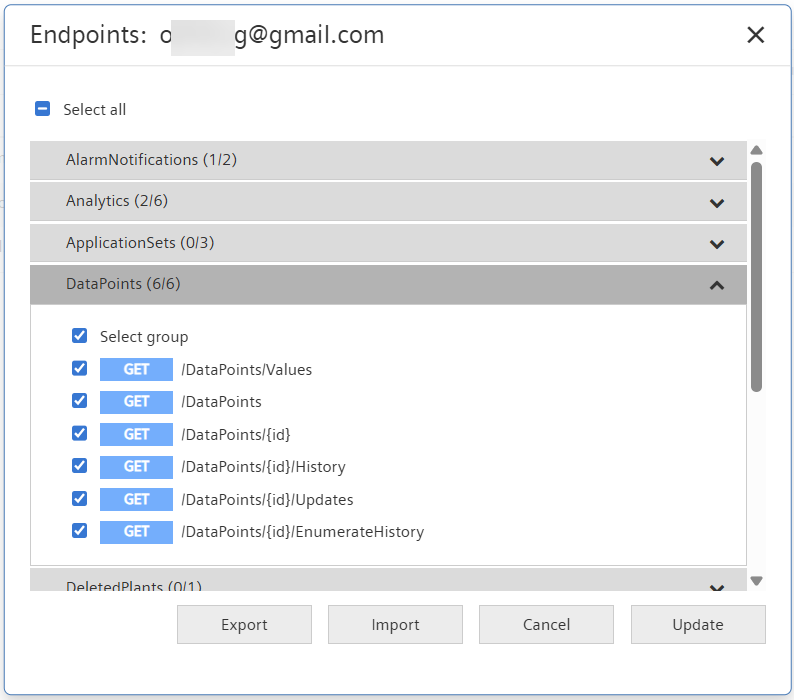
- Select the API endpoints to throttle:
- Open the drop-down list with the corresponding endpoint.
- Select the appropriate endpoint.
- OR: Import an existing .json file containing endpoints:
- Click 'Import'.
- Select the .json file containing the desired endpoint selection and click 'Open.'
- Click 'Export'.
- The selected endpoints are exported to a .json file on the local computer.
- Click 'Update'.
- The pop-up window closes.
- Only the selected endpoints are throttled.
Set the number of queries per minute
The actual throttling of queries to the previously set API endpoints is configured as follows:
- Click 'Set maximum queries for selected users' (8).
- A new pop-up window opens:
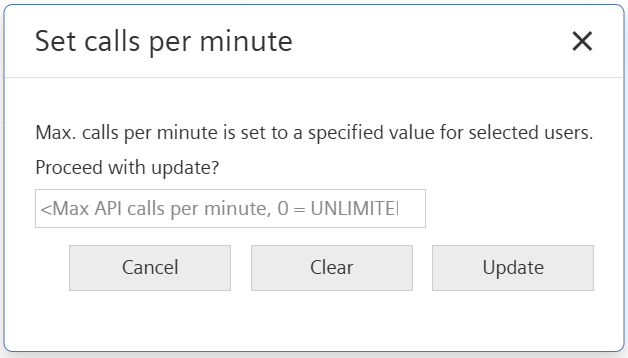
- Enter the desired number of queries in the text field:
- Enter a number between 0 and 500.
- The value '0' means: 'Unlimited number of queries'.
- Click 'Update'.
- The window closes.
- The maximum number of requests per minute is updated.
- Click 'Delete'.
- The window closes.
- The limit on the maximum number of queries per minute is rescinded.
Determine access levels
Proceed as follows to change a user's access level as determined by the user role:
- Click 'Set access level' (9).
- A new pop-up window opens:
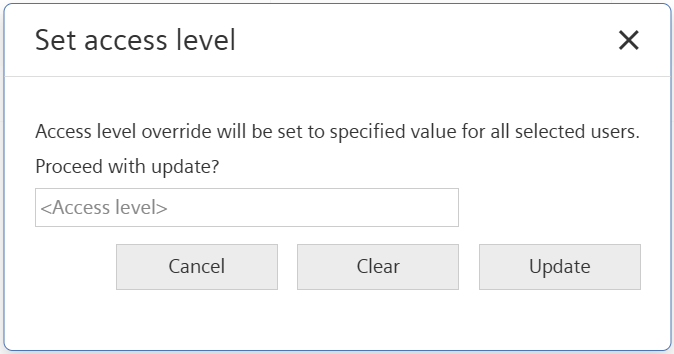
- Enter the access level in the text field:
- A number between 0 and 255.
- Click 'Update'.
- The window closes.
- The access level is updated.
- Click 'Delete'.
- The window closes.
- The access level is reset to the value specified by the API user role.
View history
'View history' indicates the number of API calls made by the user each month:
- Click 'View history'
- A new 'API usage' pop-up window opens:
- The pop-up window indicates the months and API queries.
- Select icon .
- All history data is exported to a .csv file on the local computer.