Plant overview
The 'Plant overview' provides detailed information on the individual plants registered in the application set.
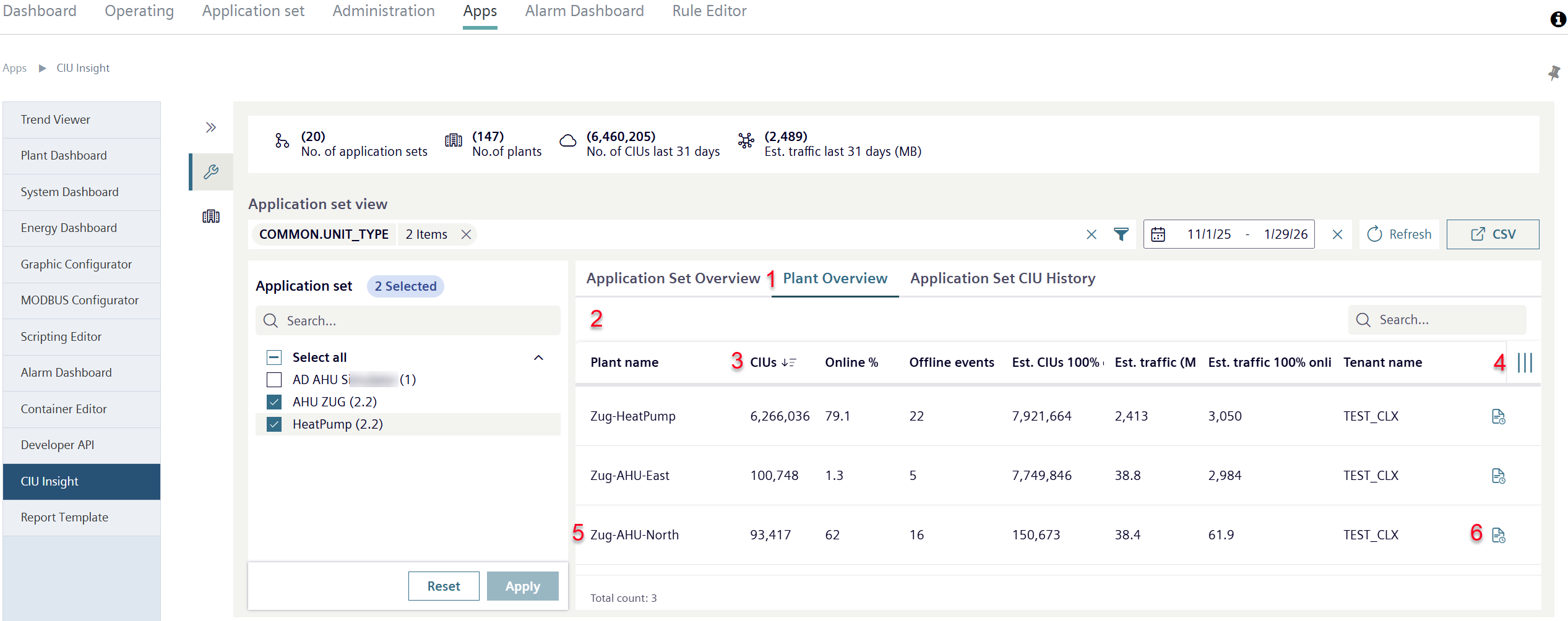
- Click 'Plant overview' (1).
- A tabular overview of the plants in the selected application sets opens (2).
- The overview displays detailed information on plants and their consumption data.
- Click on one of the table headings (3).
- The table is sorted in ascending or descending order according to the clicked characteristic.
- Click "III" (4).
- Other table columns with additional attributes can be displayed or hidden (on operation, see 'Active alarms view').
- Click a row with a plant name (5).
- A view with all available details about the plant opens in the plant view (see 'Plants').
- Click symbol ' Show plant details' (6).
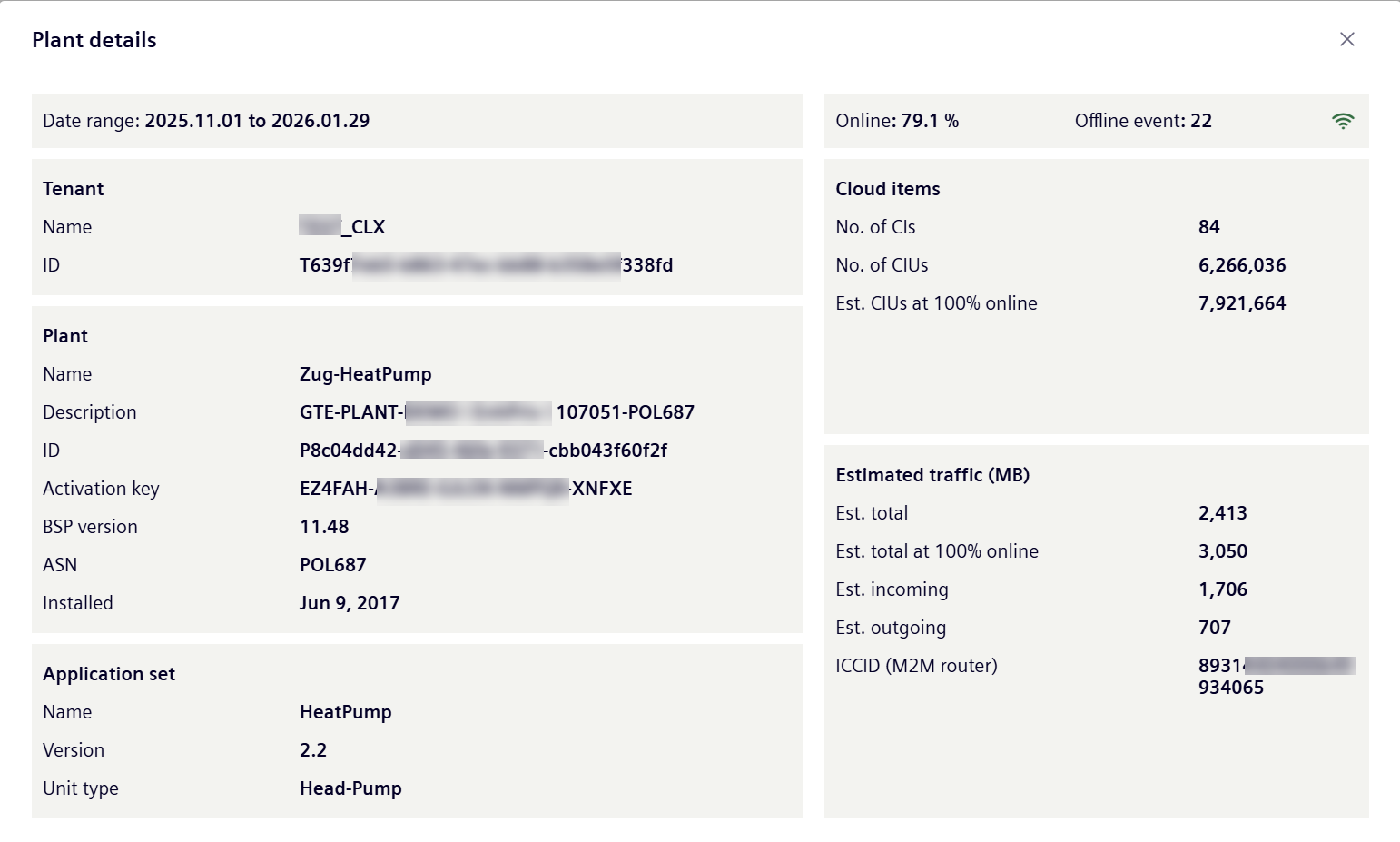
- A new window opens with plant details, current plant status and data use: