Export Alarm IDs as CSV files and import them from CSV files
A Tenant-Administrator can import all alarms↑ occurring on a Climatix IC controller to the Alarm Dashboard, where they can be viewed and edited. This is useful if alarms occurred in the controller while not connected to Climatix IC but you want the alarms to be available in Climatix IC as well.
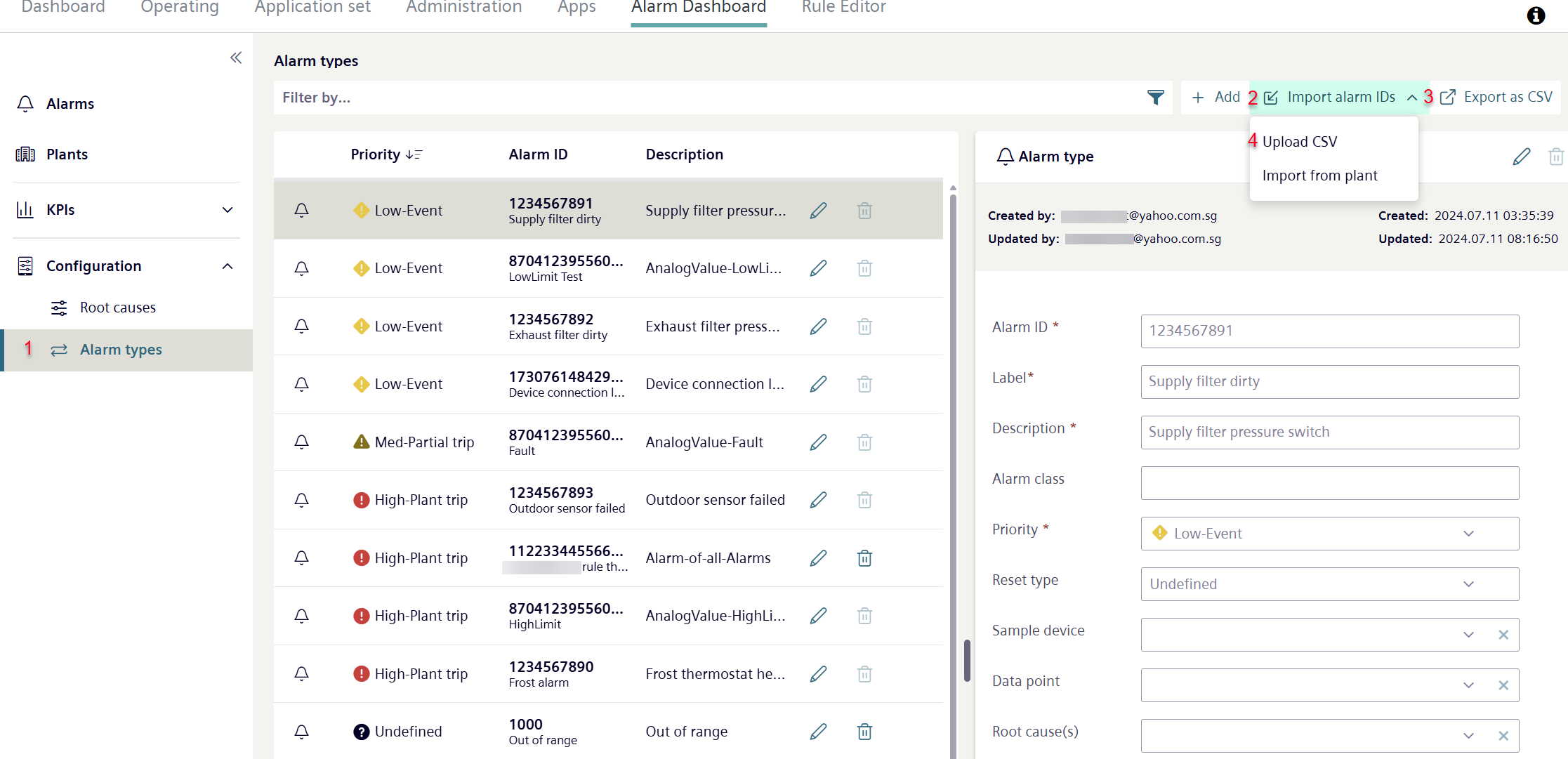
- The own role is 'Tenant-Administrator’.
- Go to 'Alarm Dashboard > Configuration >Alarm Types’ (1).
- Select 'Import Alarm IDs' (2).
- A new drop-down menu opens.
- Select 'Upload csv file' (3).
- A new 'Import alarm types' window with filter options opens.
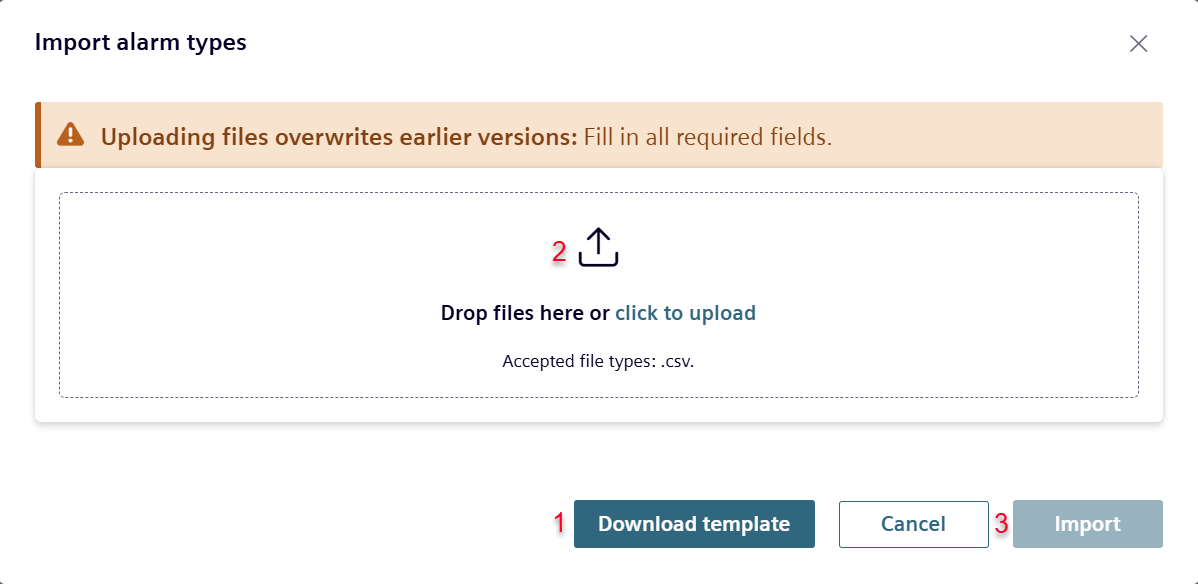
Download the template for edit on your local computer outside of Climatix IC
Alarm types can also be generated and edited outside of Climatix IC. This is done in a .csv file. You can download a .csv file from the Alarm Dashboard in the correct format and layout to your computer for further editing. Proceed as follows:
- Click 'Download template' (1).
- A .csv file containing the alarms currently displayed in the Alarm Dashboard is downloaded locally to your computer.
- It can be edited locally and then reimported to the Alarm Dashboard with the new content.
- The 'Alarm ID' and 'Alarm class' are set by Climatix IC and cannot be changed.
Import a CSV file with custom alarm types to Climatix IC
CSV files containing alarm types generated on the local computer can be reimported into Climatix IC. They can be used there and further processed within Climatix IC (see 'Edit alarm type').
- Drag the file to the window or click 'Click to upload' and select the .csv file from your local computer (2).
- Click 'Import' (3).