Reports
Plant 'Reports' are logs that reflect the current state and operating history of the plants. They assist in controlling and monitoring plants. The logs can be manually or automatically produced on the plant level and downloaded.
The reports can be modified. Report templates are first built and then used in a second step:
- To either upload directly to the plant as a plant file,
- or load as a 'Report file' to a plant’s application set.
- The own Role↑ has the privilege 'Plant / Execute reports' (see 'Roles').
- A fully tested template for the creation of plant reports is available (see section 'Report template').
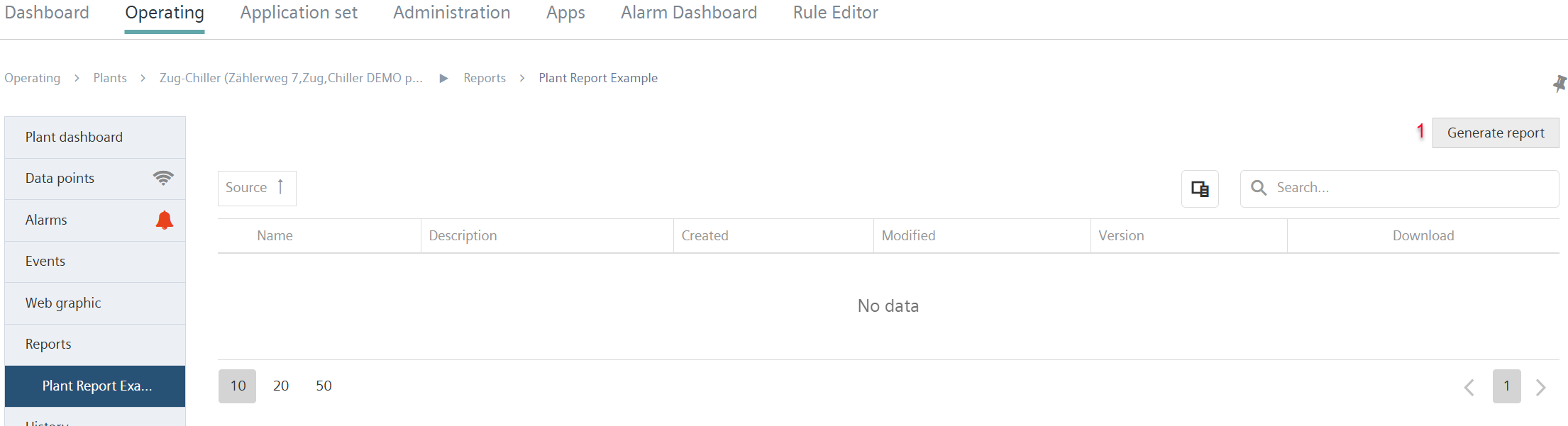
- Go to 'Operation menu > Plants > [My plant] > Reports'.
- A new menu opens:
Create plant reports
The plants reports are created in an initial step.
- Click 'Create report’ (1).
- A new mask opens:
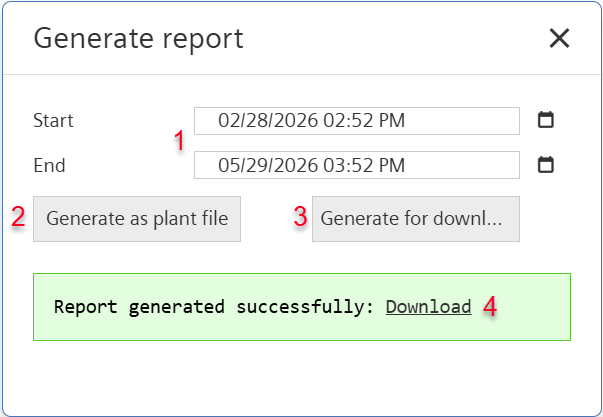
- Select the start and stop times of data collection of the report (1).
- Select either 'Generate as plant file' (2).
- A plant report is created.
- A message displays that the report is generated.
- The plant report is available:
In the 'Operations menu > Plants > [My plant] > Report'.
In the 'Operations menu > Plants > [My plant] > Report'. - After editing (please refer to the section below), the report is stored directly on the plant as a plant file (see 'Plant files').
- Or select "Generate for download" (3).
- A message displays that the report is generated.
- Click 'Download' (4).
- The plant report is stored as an .odt file in the downloads folder on the local computer.
- Select 'X’ to exit the mask.
- The new plant report displays in a list under the menu 'Operation > Plants > [My plant] > Reports' or "Operation > Plants > [My plant] > Files' (1):
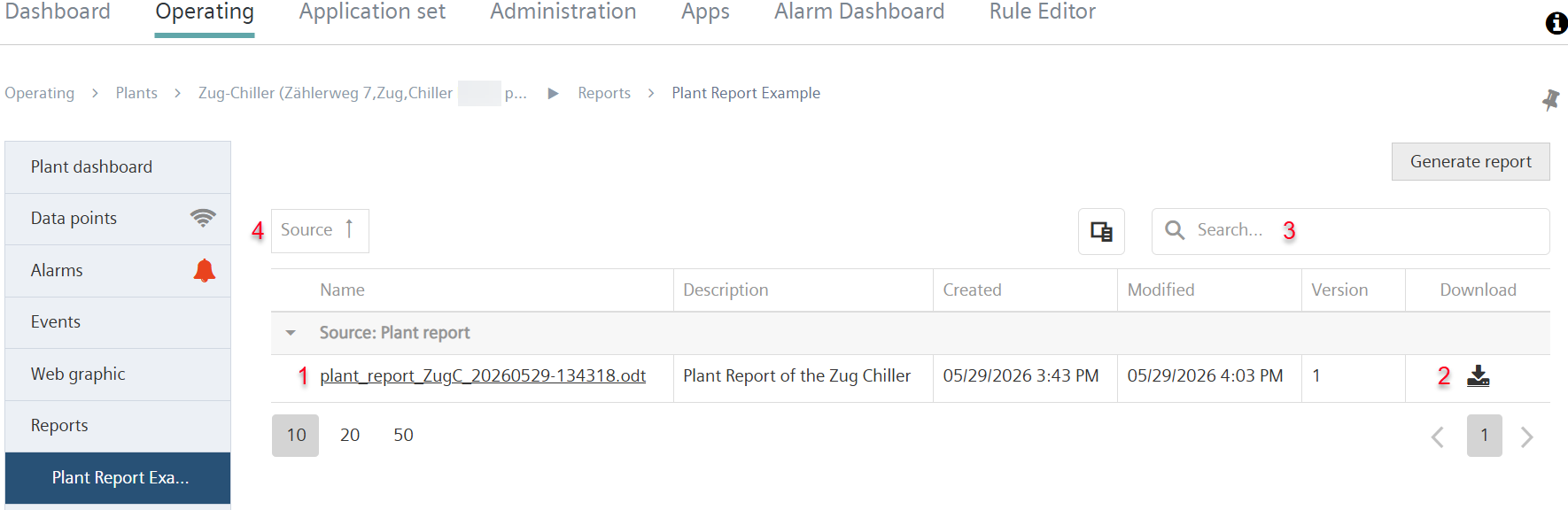
- The plant reports in the list can be downloaded (2).
- You can search for specific plant reports (3).
- A list with multiple entries can be sorted alphabetically (4).
Edit properties of plant reports
In a second step, revise the properties of the generated plant reports:
- Select a generated reports from the (1).
- A new window opens.
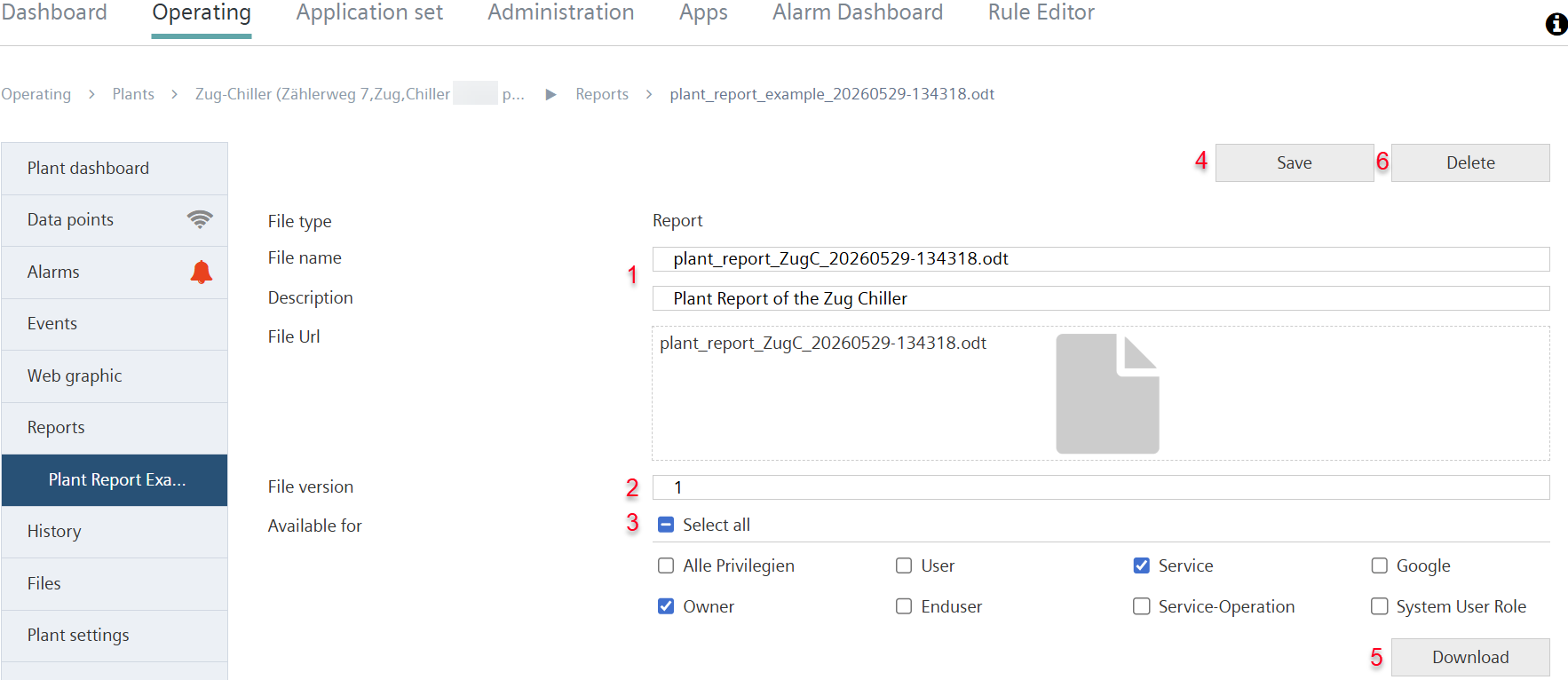
- Modify the file name and description of the asset report as needed (1).
- Assign a version number to the report (2).
- One-up the version number each time you regenerate a plant report.
- Select the users who have access to the plant report as well as the privileges (3).
- Save the entries (4).
- After editing (please refer to the section below), the modified information is stored directly on the plant as a plant file (see 'Plant files').
- Select 'Download’ (5).
- The plant report is stored with the modified information an .odt file in the downloads folder on the local computer.
- Select 'Delete' (6).
- The plant report is deleted and no longer available in Climatix IC.