Highlight plants as 'Favorite'
Plants can be highlighted as 'Favorites↑'. The additional attribute of 'Favorites' makes it easier to search in the various Climatix IC search masks and filter within the highlighted plants.
- 'Favorites↑’ can quickly filter out a large amount of plants and find them.
- 'Favorite’ plants can be represented directly side-by-side and compared by hiding all other plants.
- Favorite’ plants can be depicted side by side using the sort function.
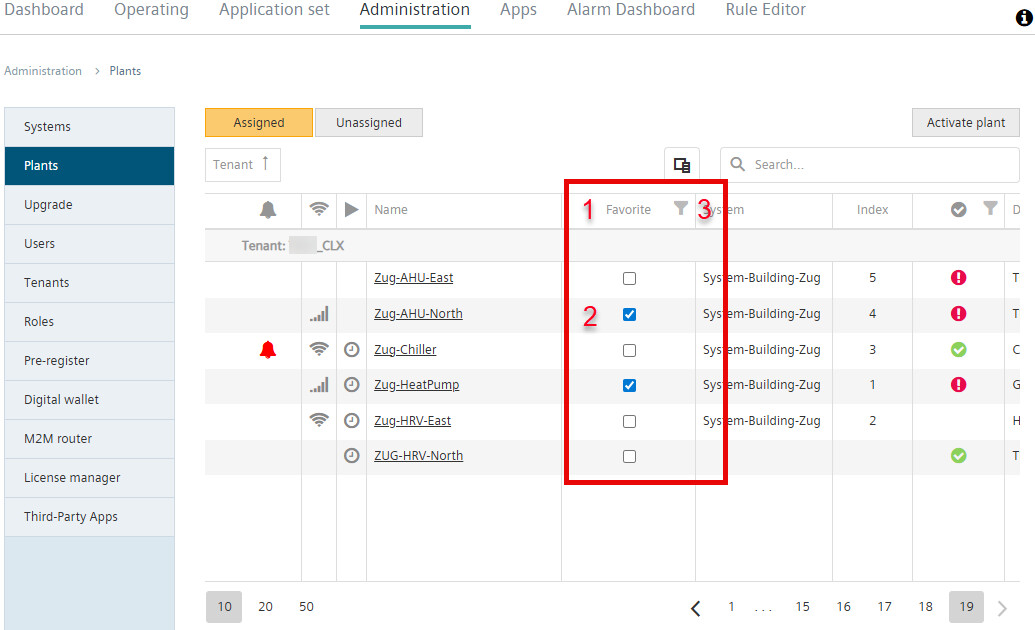
- The tenant has activated plants (see section 'Assigning and activating unassigned plants').
- Go to 'Administration > Plants'.
- Select (2) the plants to filter by in column 'Favorite' (1).

The filter by plant attribute 'Favorite' is saved to the user account. The filter is then stored in the user's browser.
When opening another tenant with the same user account and browser, the filter is adopted and also activated in the newly opened tenant.
Plants in the newly opened tenant are then automatically filtered by 'Favorite’ even if the filter was not set in this browser.
Filter
- Plants are highlighted as 'Favorite.
- Select
 (3) in column 'Favorite'.
 - A new selection window opens:
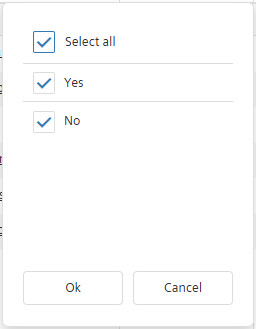
- Select 'Yes' to select all plants highlighted as Favorites.
- Select 'No' to select all plants not highlighted as Favorites.
- Select all' to select all plants.
- Select 'OK'.
- The list of plants now only displays the selected plants.
Sort
- Plants are highlighted as 'Favorite.
- Left-click the text 'Favorites' (1).
- All plants are sorted in descending order according by the attributes 'Name' and 'Favorite: No / Yes'.
- Left-click again the text 'Favorite'.
- All plants in the table are sorted in ascending order by attributes 'Name' and 'Favorite: Yes / No'.
- Right-click the text 'Favorites'.
- A new selection window opens for sorting the plants in the List:
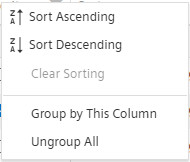
- Select 'Sort ascending' oder 'Sort descending' to sort the plant in the table.
- Select 'Clear sorting' to rescind the sort.
- Select 'Group by this column' or 'Ungroup all’ to divide into individual tables by the selected attributes or merge them (see 'Search, sort, group').