Quick overview of plants with 'Service+’ subscriptions
A Tenant-Administrator can quickly view the plants in the tenant with a 'Service+↑' contract, as well as the status and expiration date.
- The own role is 'Tenant-Administrator’.
- Go to 'Administration > Plants'.
- Click "Column selection"
 .
. - Drag the "Service+" entry to the table header. (See also chapter "Search, sort, group").
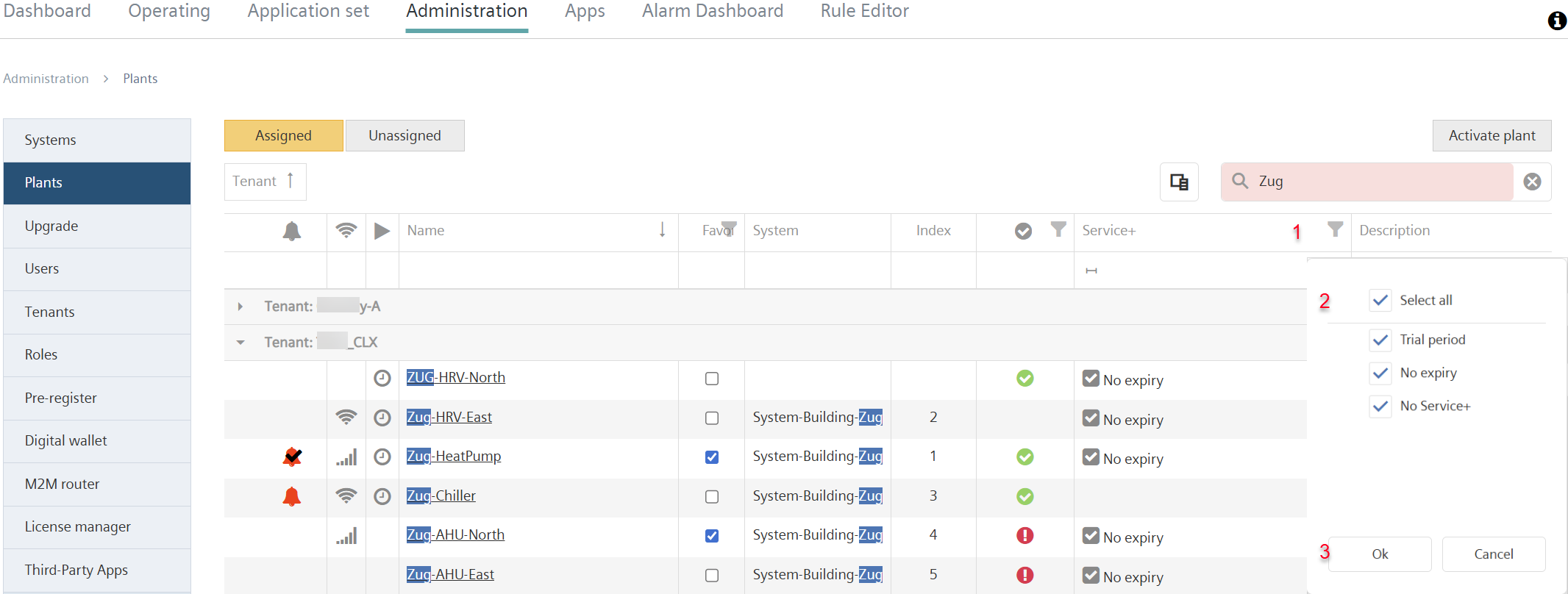
- A new "Service+” column displays the "Service+" subscriptions of the plants listed in the table.
- In column 'Service+’, select and click icon (1).
- A new menu opens (2).
- The menu displays available Service+ states for plants, such as 'Trial Period', 'Service+ subscription expiration date' or 'No Service+ subscription'.
- In the menu window, select the states for filtering and click 'OK' (3).
- The plants are listed by the selected 'Service+' contract terms.

A plant's 'Service+'status is also included in the monthly billing statement (see 'Billing - Payment model 'Post-Pay'').